Languages
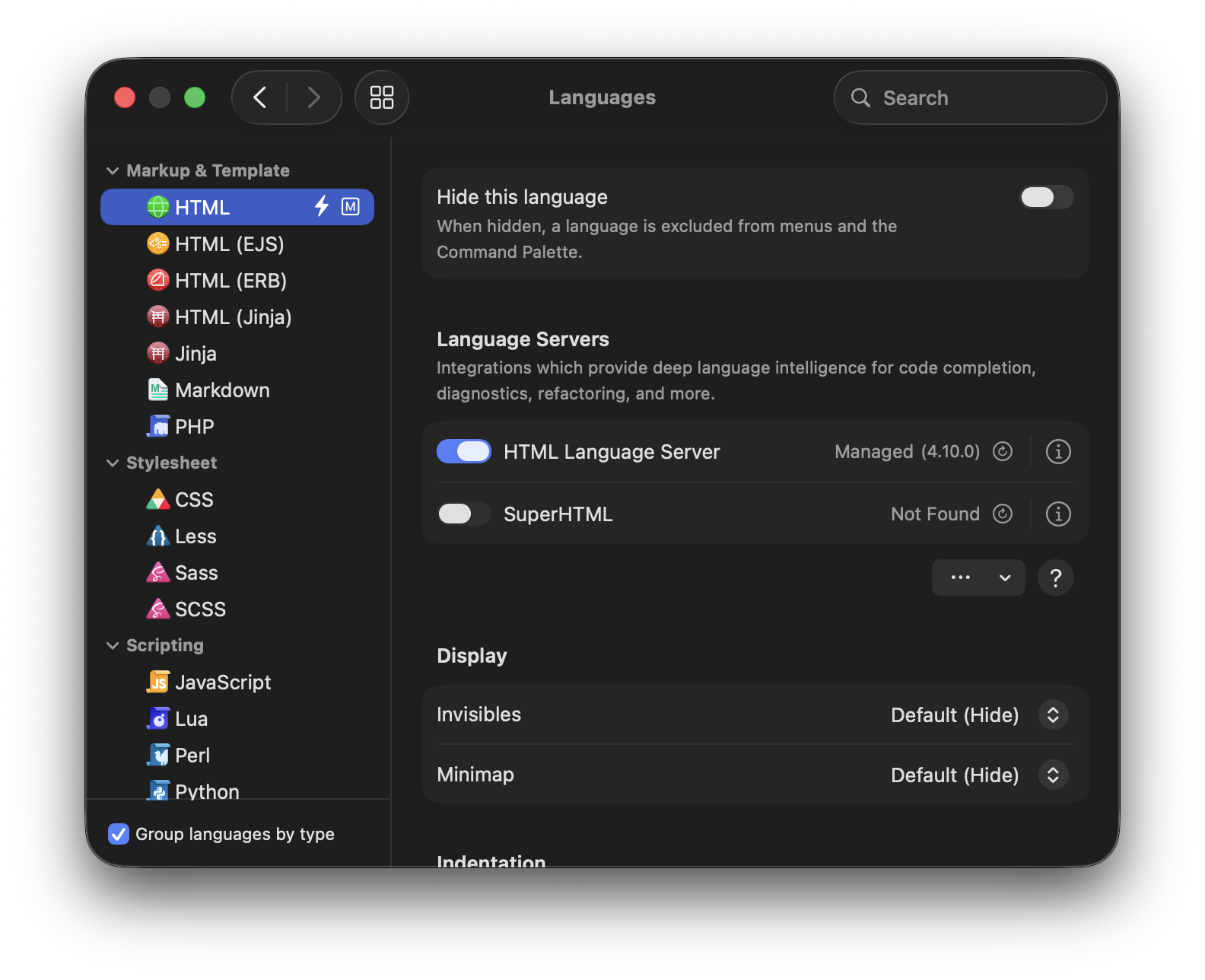
In the Languages settings, you can override various editor settings for specific syntax modes. For instance, you can set custom indentation settings for a particular language like Python, which override the settings specified in Editor Settings.
Additionally, you can also connect Nova to language servers that provide additional functionality for particular languages. Language servers can provide more intelligent context-sensitive completions for your project, automate common actions, check your code for issues and warnings, and more. Nova will automatically detect many popular language servers that you may already have installed on your Mac. You can also have Nova install and manage language servers for you.
|
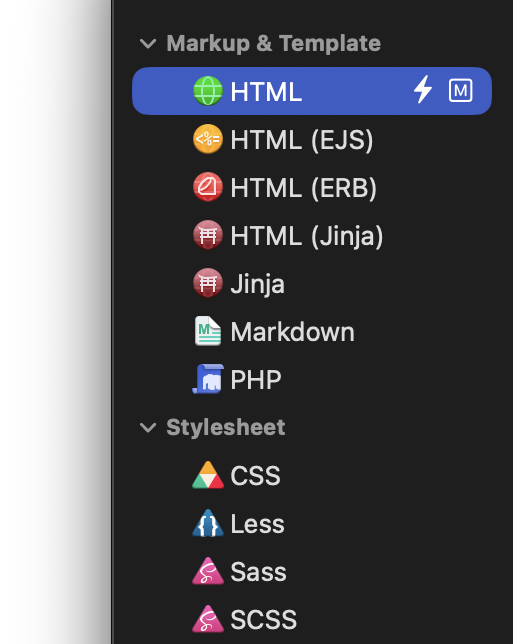
From the sidebar on the left, you can select a particular language to configure. By default, languages will be grouped by the purpose of the language. For instance, markup languages will be grouped together, as will stylesheet languages, scripting languages, and so on. You can uncheck Group languages by type in the lower-left corner of the window to list all languages together alphabetically. |
|
Languages which have language servers enabled will display a lightning bolt symbol in the sidebar, while languages that have per-syntax settings overrides will have an
icon.
Language Servers
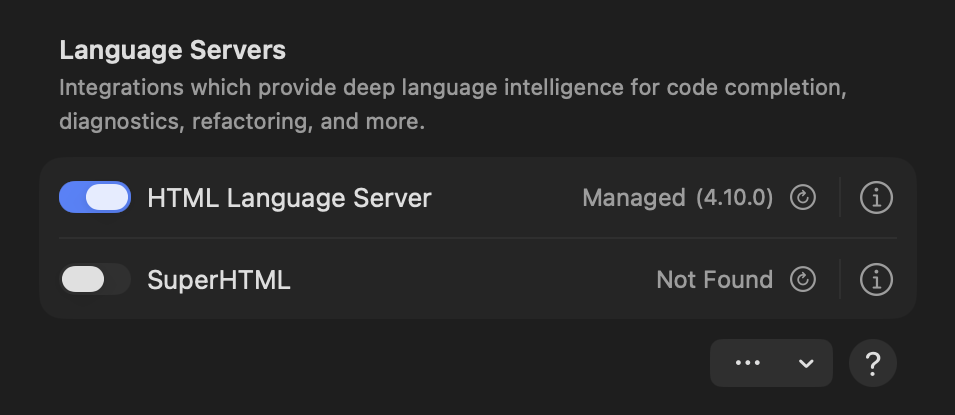
Here, you’ll see a list of language servers configured for the currently selected language. Nova automatically learns about compatible language servers from registries configured in Settings > Tools. By default, Nova checks the official Nova Registry (github.com).
If a language server has been installed by Nova, it will display as Managed, and display the currently active version of the language server. Servers installed via other means, such as Homebrew or manual installations, will display the path to the installation Nova is using. Servers that Nova cannot find on your Mac will display as “Not Found”. Click the Refresh icon to have Nova recheck for any existing installations of the language server on your Mac.
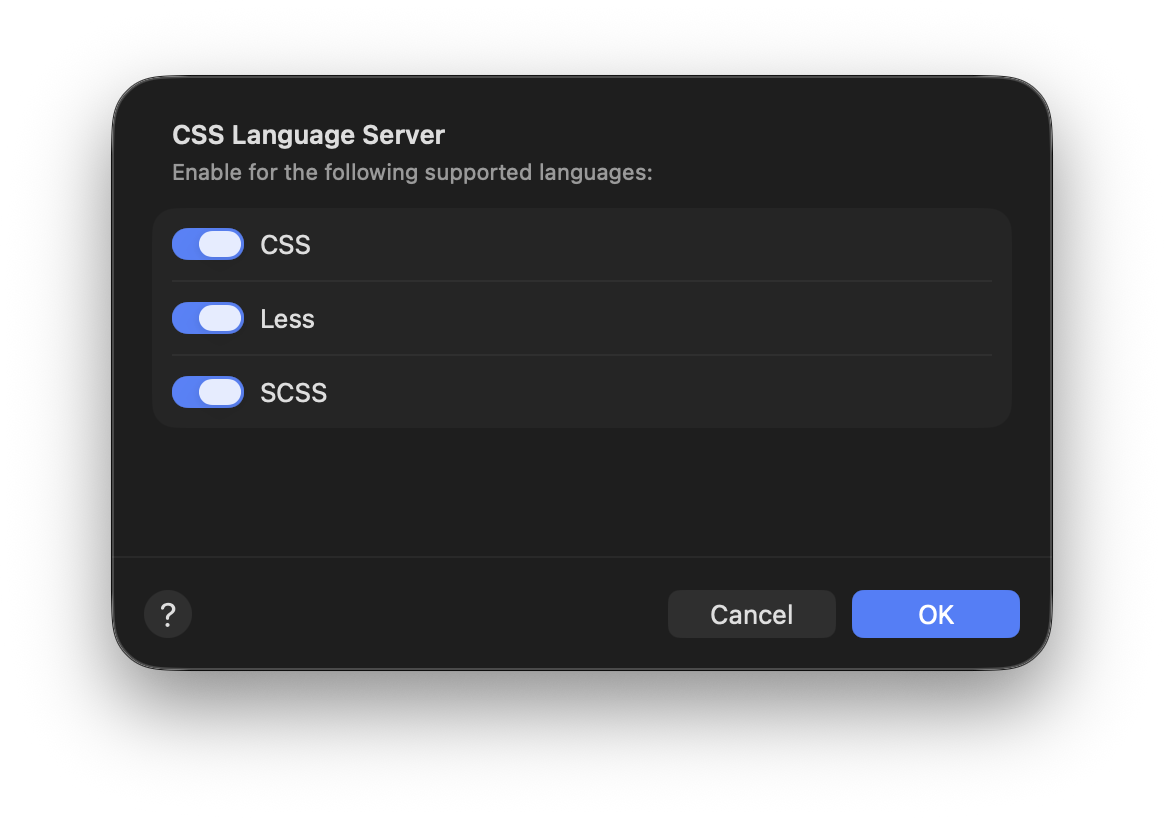
You can enable or disable a particular language server using the toggle to the left of each server listed. If a server supports multiple languages, you will be asked which languages to enable the server for.
Custom Language Servers
Don’t see the language server you want to use? Click the ⋯ button beneath the list of language servers and you’ll find an option to Add a Custom Language Server…
When adding a custom language server, you’ll need to provide a command used to initialize the server, using the Server settings detailed below.
Server Details
Click the icon to the right of a language server to view more details about that server, as well as configure some additional settings.
Server
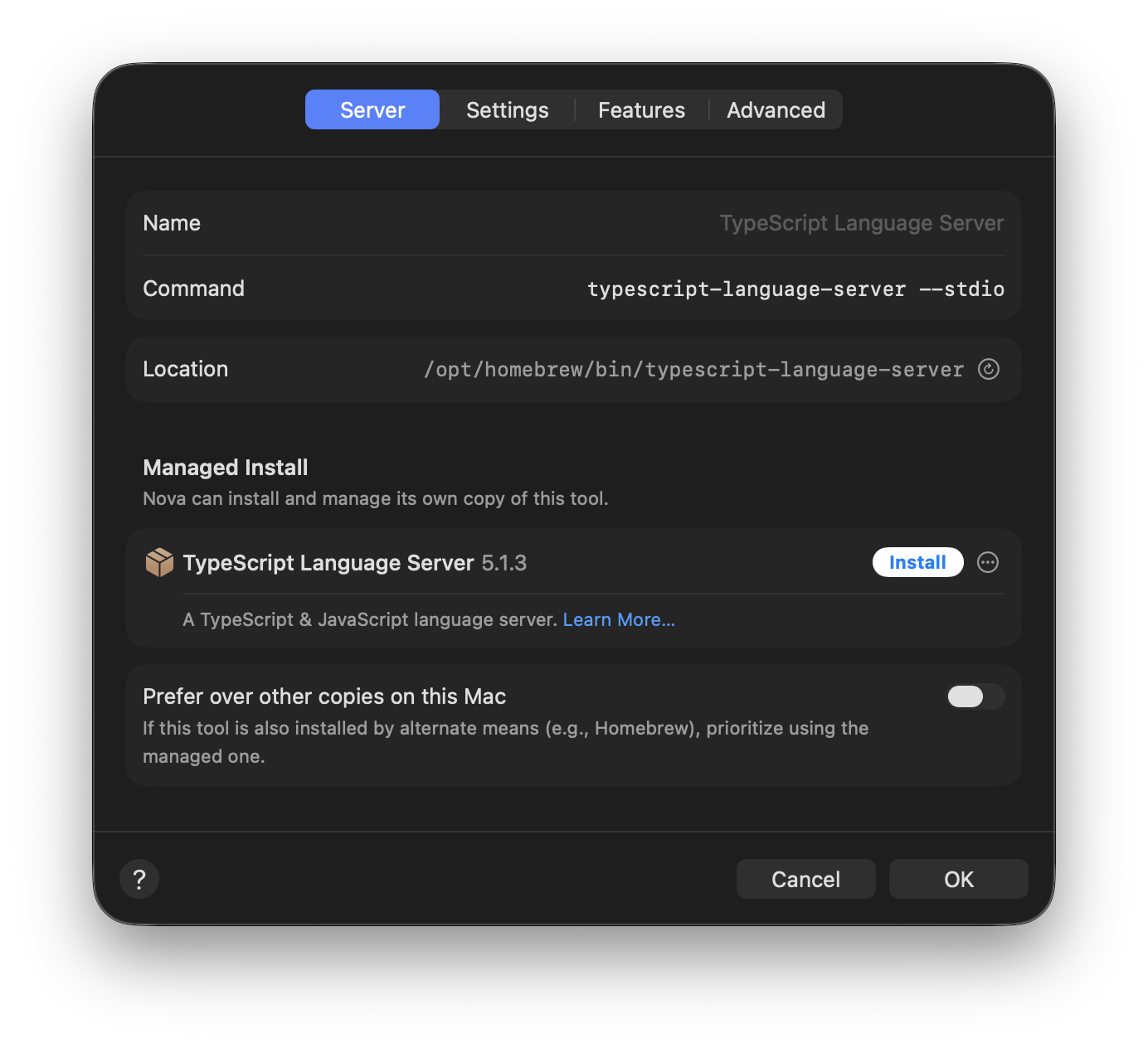
- Name
- The display name for the server. Automatically configured for language servers found in registries. Can only be modified for custom language servers.
- Command
- The shell command used to invoke the language server. You can customize this to pass different arguments to the server.
- Location
- If the language server is installed and managed by Nova, will display Managed. For servers installed manually, this field displays the path to the language server’s executable on your Mac, if found. Otherwise, displays Not Found. Click the
Refresh icon to have Nova recheck for any existing installations of the language server on your Mac.
Click the icon to the right of the language server to view a context menu with additional options:
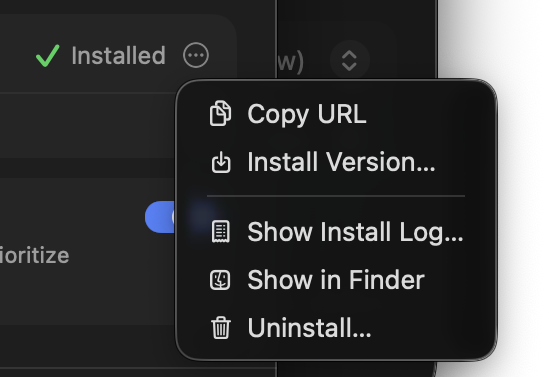
- Copy URL
- Copy a link to the language server’s official website or download page.
|
|
- Show Install Log
- Display the log window shown during installation. Useful for reviewing any errors that may have occurred.
- Show in Finder
- Open the installation directory for the language server in Finder. Nova installs managed language servers in
~/Library/Application Support/Nova/Tools/packages. - Uninstall
- Remove the managed installation of the language server from your Mac.
Managed Install
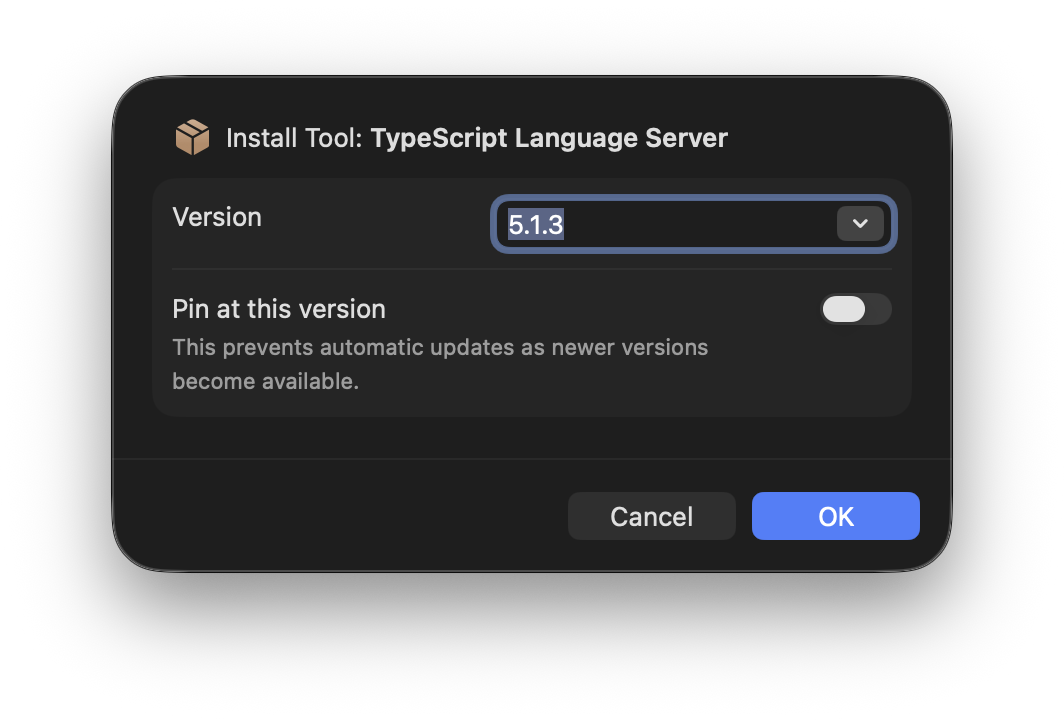
If you don’t already have a copy of a language server on your Mac, or you want to use a specific version of a language server separate from your existing installation, you can have Nova install and manage the language server. Simply click the Install button, and Nova will install the language server and automatically configure it for use.
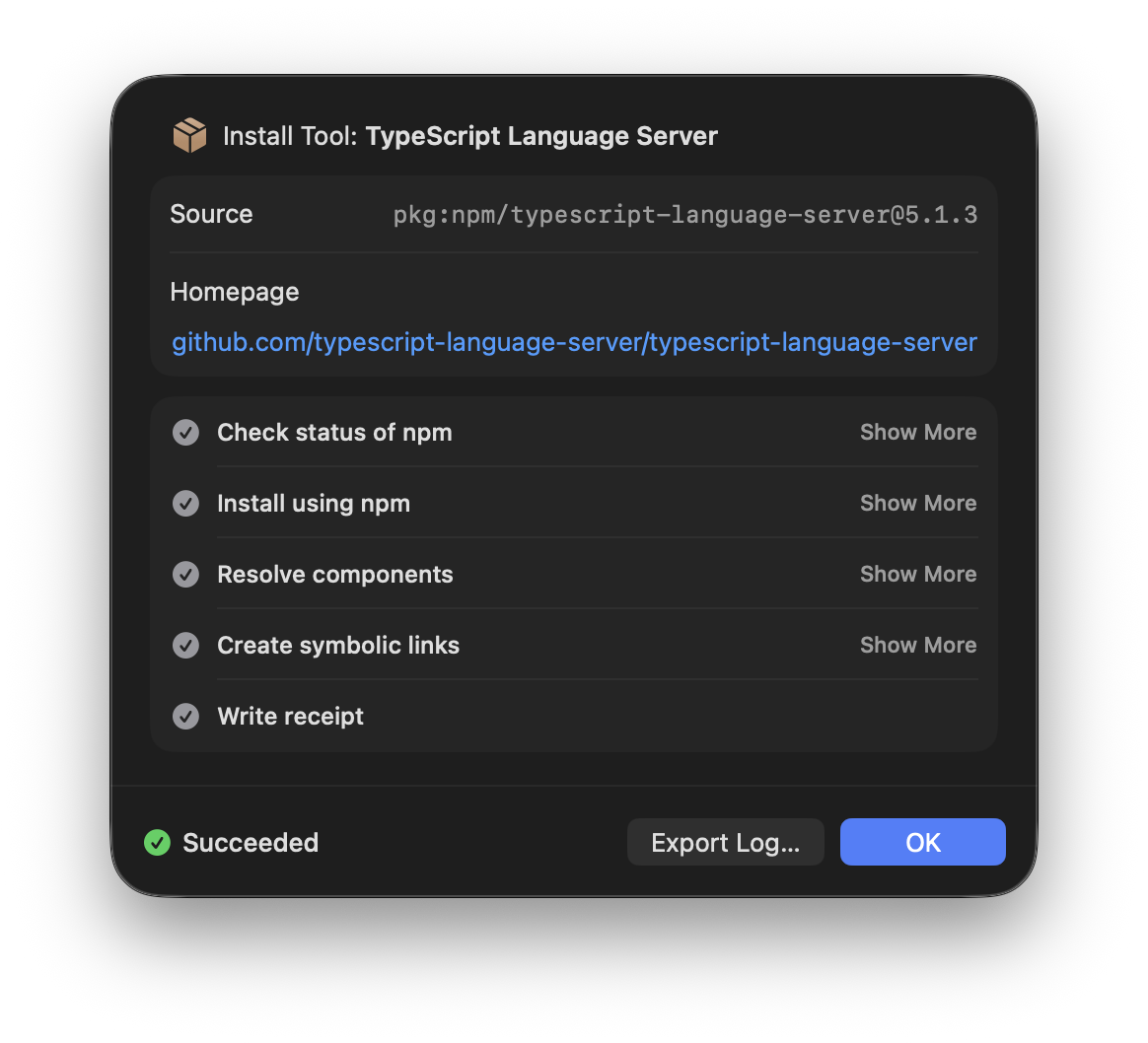
While the language server is installed, Nova will display a log window displaying the progress of the installation. If an error occurs during installation, Nova will display it here. If the installation is successful, simply click OK to close the log. You can also export the log to a file if you need to contact Nova Support for help with an error during installation.
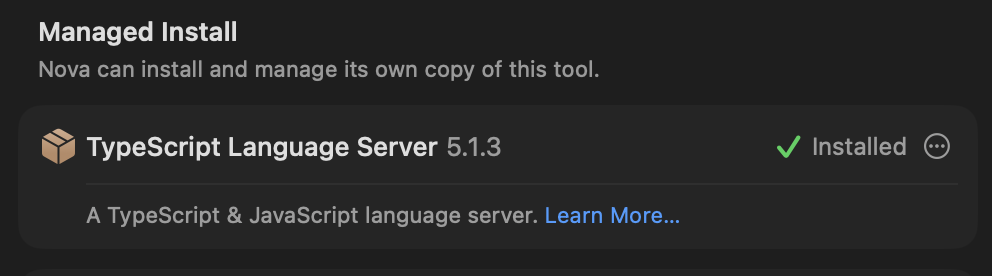
- Prefer over other copies on this Mac
- If enabled, Nova will always use the managed copy of the language server, even if another installation is found on your Mac.
Settings
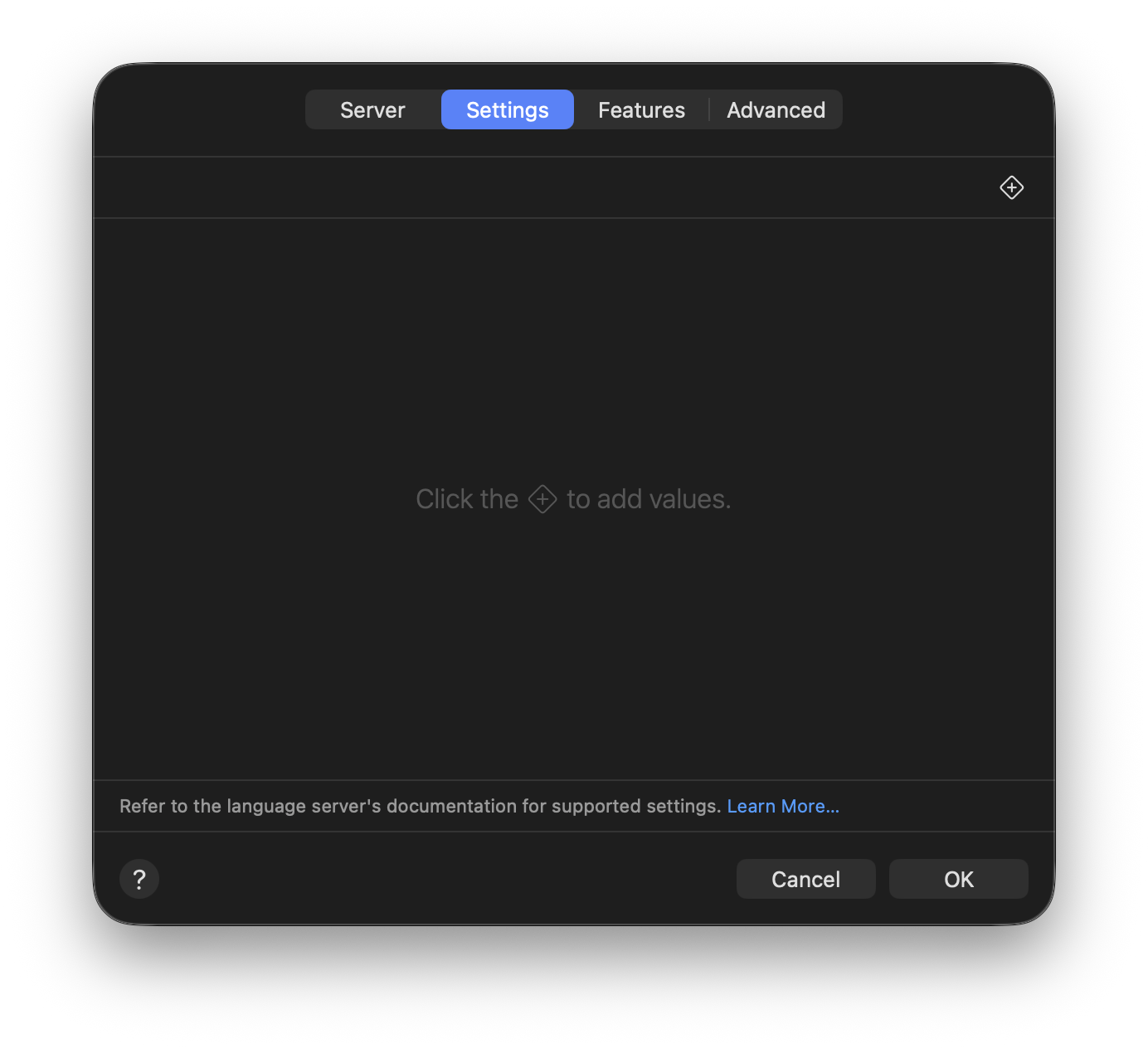
In the Settings tab, you can pass configuration options to the language server. The exact options you can configure will vary from server to server. Consult the documentation for the server you want to configure to see what options are supported.
To add a configuration value in Nova, click the + icon in the top-right corner.
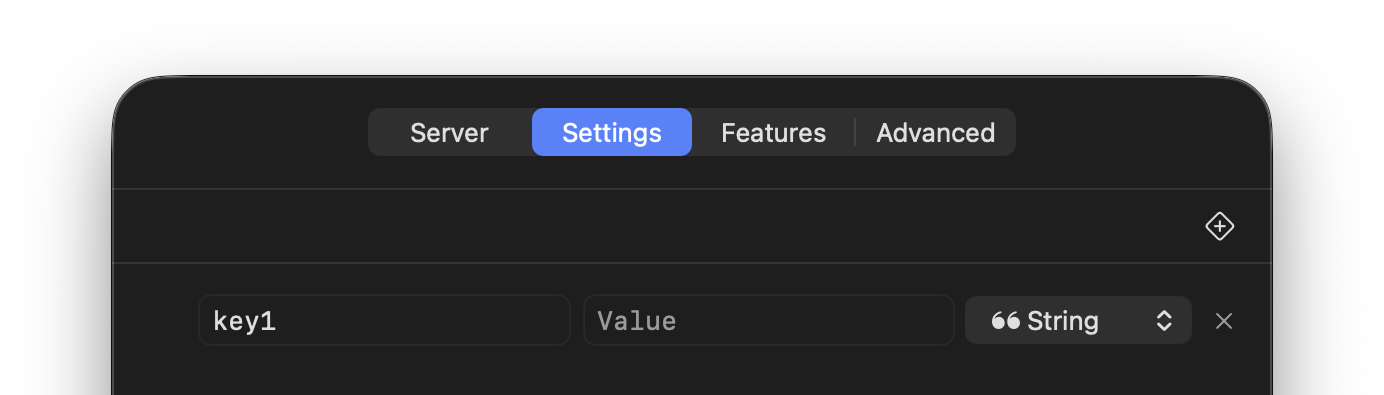
Configuration options for language servers are provided as key-value pairs. You’ll also need to specify what type of value the server is expecting for the given option, such as an array, boolean, null, number, object, or string.
Features
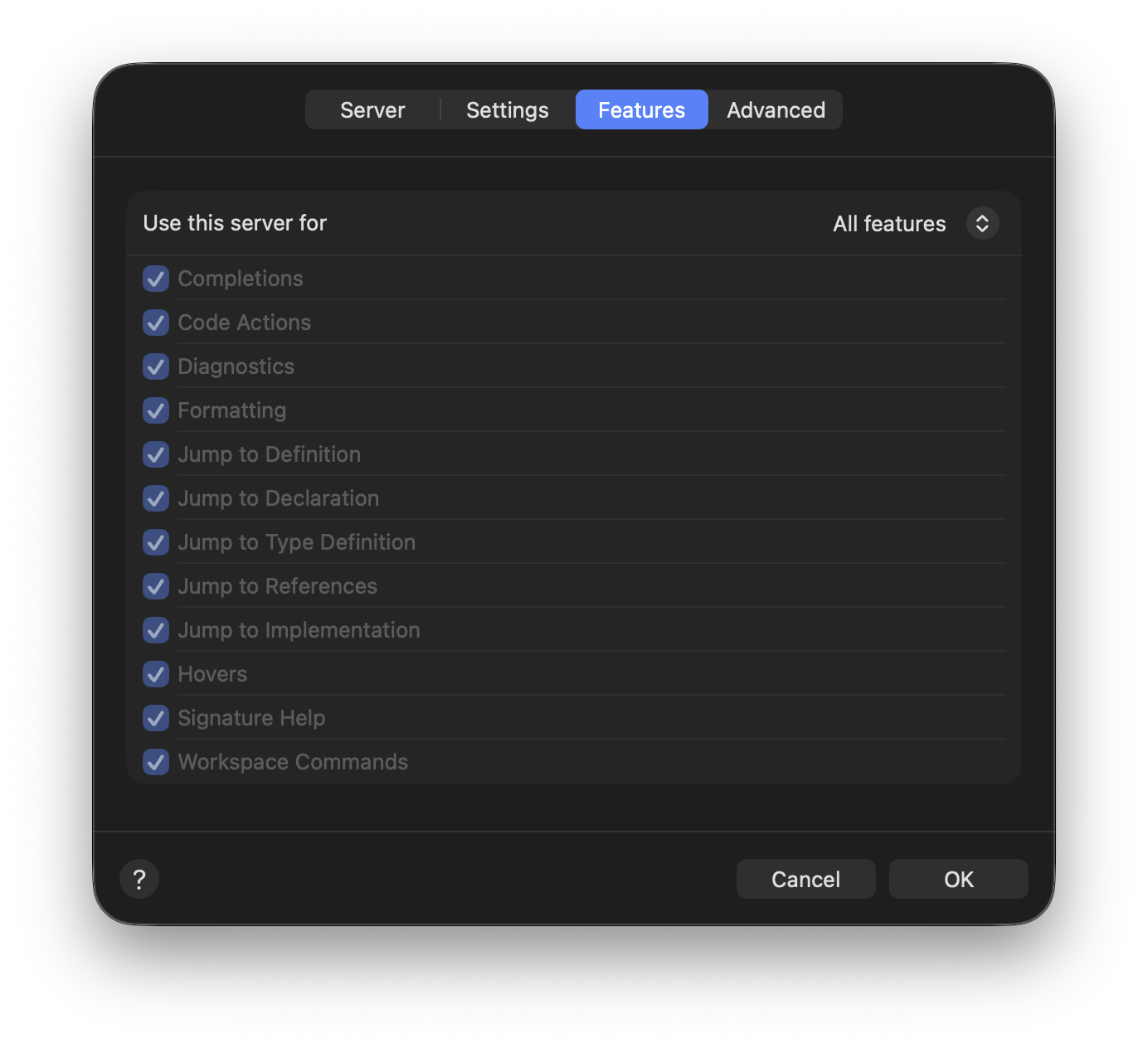
Here, you can configure which Nova features should integrate with the chosen language server. Supported features include:
- Completions
- Code Actions
- Diagnostics
- Formatting
- Jump to Definition
- Jump to Declaration
- Jump to Type Definition
- Jump to References
- Jump to Implementation
- Hovers
- Signature Help
- Workspace Commands
Not all language servers may support all features.
Advanced
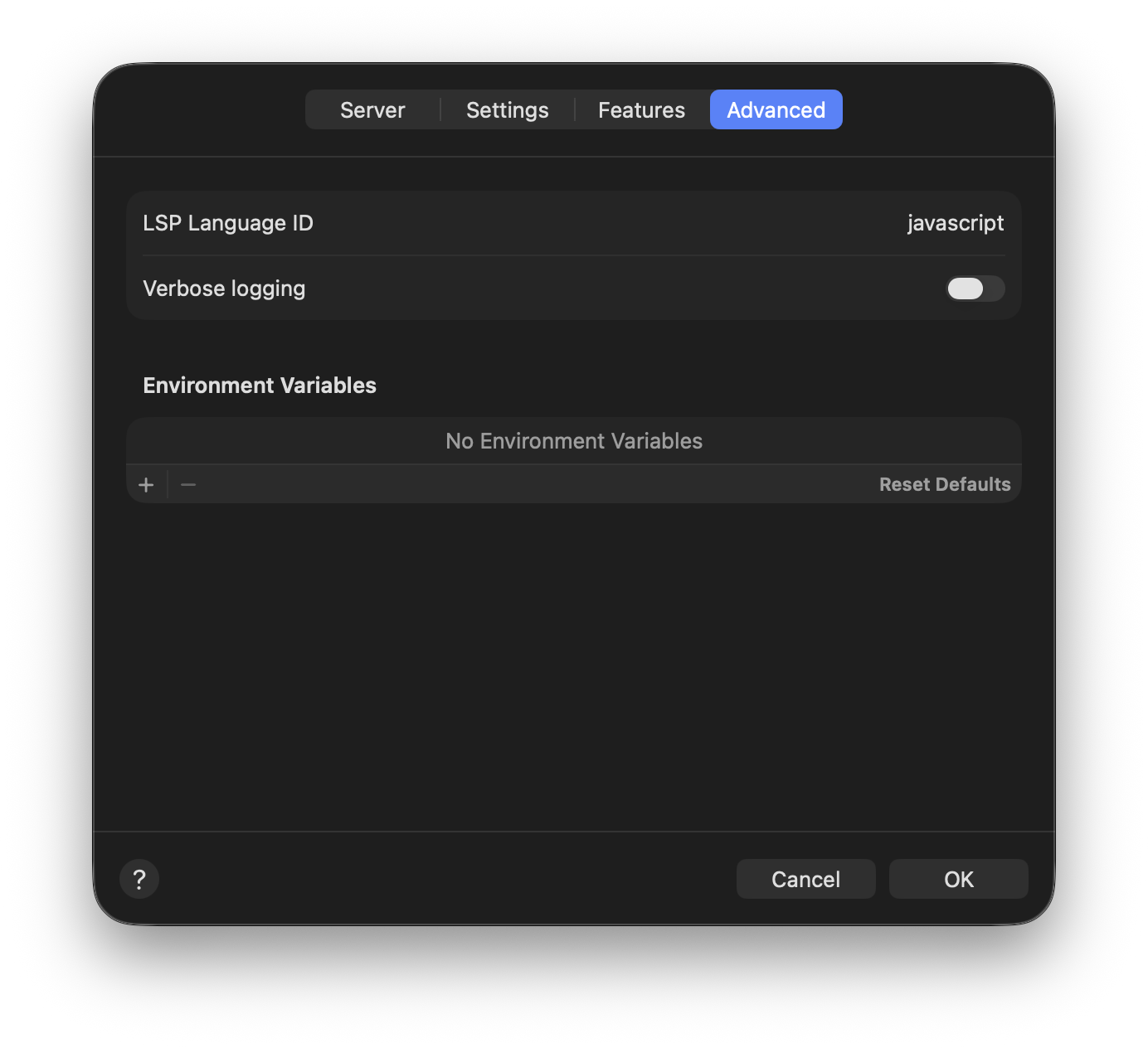
- LSP Language ID
- The identifiers of the languages this server should be used for, as defined in the Language Server Protocol specification. (microsoft.github.io)
- Verbose logging
- Enable additional logging for this language server. Language server logging can be found in the Extension Console.
Per-Syntax Overrides
Below the list of language servers, you’ll find some additional options for the chosen language.
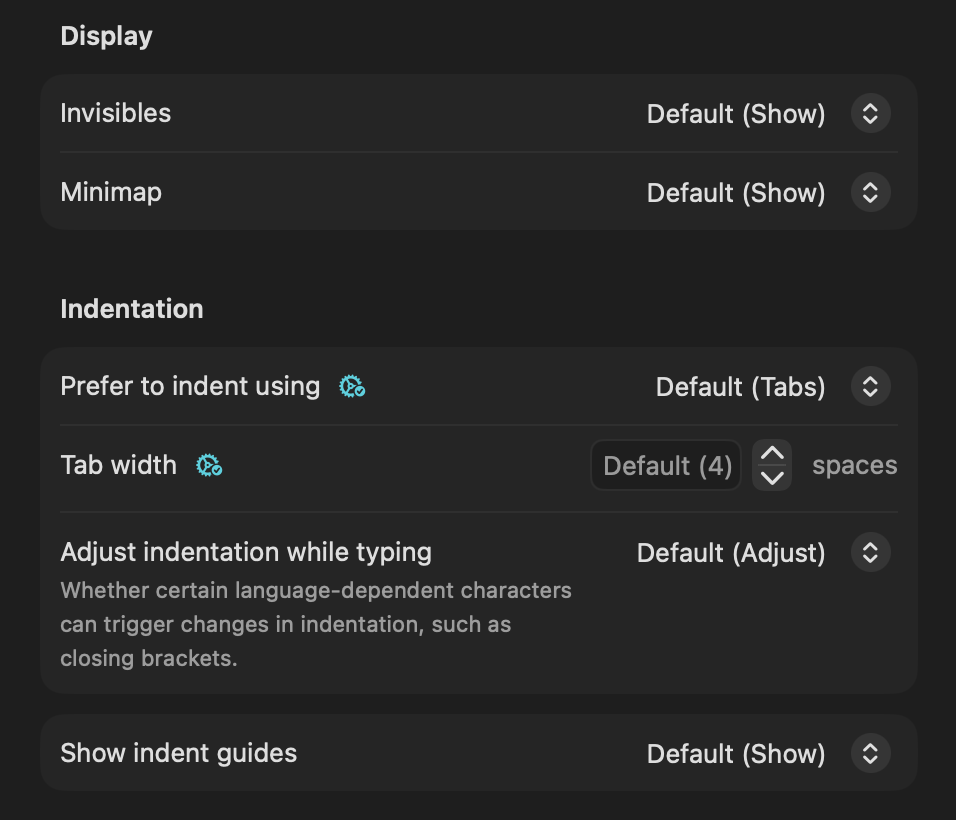
Here, you can override the default Editor settings for particular languages. For instance, you may want different indentation behavior for Python than for PHP, or perhaps you want only Markdown files to soft-wrap.
For more details on each setting, you can read the documentation for the global settings that they override.
Display
Overrides settings in Editor > Display > Show.
- Invisibles
- Minimap
Indentation
Overrides settings in Editor > Indentation.
- Prefer to indent using
- Tab width
- Adjust indentation while typing
- Show indent guides
Line Wrapping
Overrides settings in Editor > Display.
- Soft-wrap lines
- Align wrapped lines with indentation
- Hanging indent
- Show wrap guides
- Wrap guide columns
When Saving
Overrides settings in Editor > Editing > Saving.
- Trim trailing whitespace from lines
- Ensure an end-of-file newline exists
Customizations
- Reset Customized Settings
- Click this button to remove any overrides for the currently selected language and follow the global settings.
|
← Previous Editor Settings |
Next → Git |